
How to Track Revenue Alongside Your Website Analytics (Stripe Tutorial)
Most analytics tools show you traffic. Himetrica shows you which visitors actually pay. Here's how to connect Stripe and start seeing the full picture.

There’s a gap in most analytics setups that nobody talks about.
You know how many people visit your site. You know which pages they view, where they came from, and how long they stayed. But when it comes to the question that actually keeps the lights on — who’s paying you, and why? — most analytics tools go silent.
Revenue lives in Stripe. Traffic lives in your analytics. And the two never meet.
That’s the problem Himetrica’s revenue integrations solve. By connecting your payment provider, you can see the full journey: from first visit to first payment, from trial signup to subscription renewal, from anonymous visitor to your highest-paying customer.
This post walks you through connecting Stripe to Himetrica, step by step. If you use RevenueCat, AbacatePay, or Shopify, we’ve got you covered too — but we’ll focus on Stripe for this tutorial.
Why revenue data belongs in your analytics
Let’s start with why this matters.
Without revenue data in your analytics, you’re making decisions based on traffic patterns. You optimize for pageviews, sessions, and bounce rates. You A/B test headlines and measure click-through rates. And all of that is useful — until you realize that the channel driving the most traffic isn’t the one driving the most revenue.
The blog post with 10,000 views might generate zero paying customers. The obscure landing page with 200 visits might be responsible for 40% of your MRR. You’d never know unless revenue and analytics live in the same place.
When you connect Stripe to Himetrica, you unlock a different way of thinking about your data:
- See which marketing channels produce paying customers, not just traffic
- Watch MRR, churn, and subscription trends alongside visitor behavior
- Match anonymous visitors to paying customers automatically by email
- Get AI-powered revenue insights that surface patterns you’d miss in a spreadsheet
It’s the difference between “we got 5,000 visitors this month” and “visitors from organic search convert at 3x the rate of paid ads, and they stay subscribed 2x longer.”
Connecting Stripe to Himetrica
The setup takes about two minutes. Here’s how.
Step 0: Create your Himetrica account
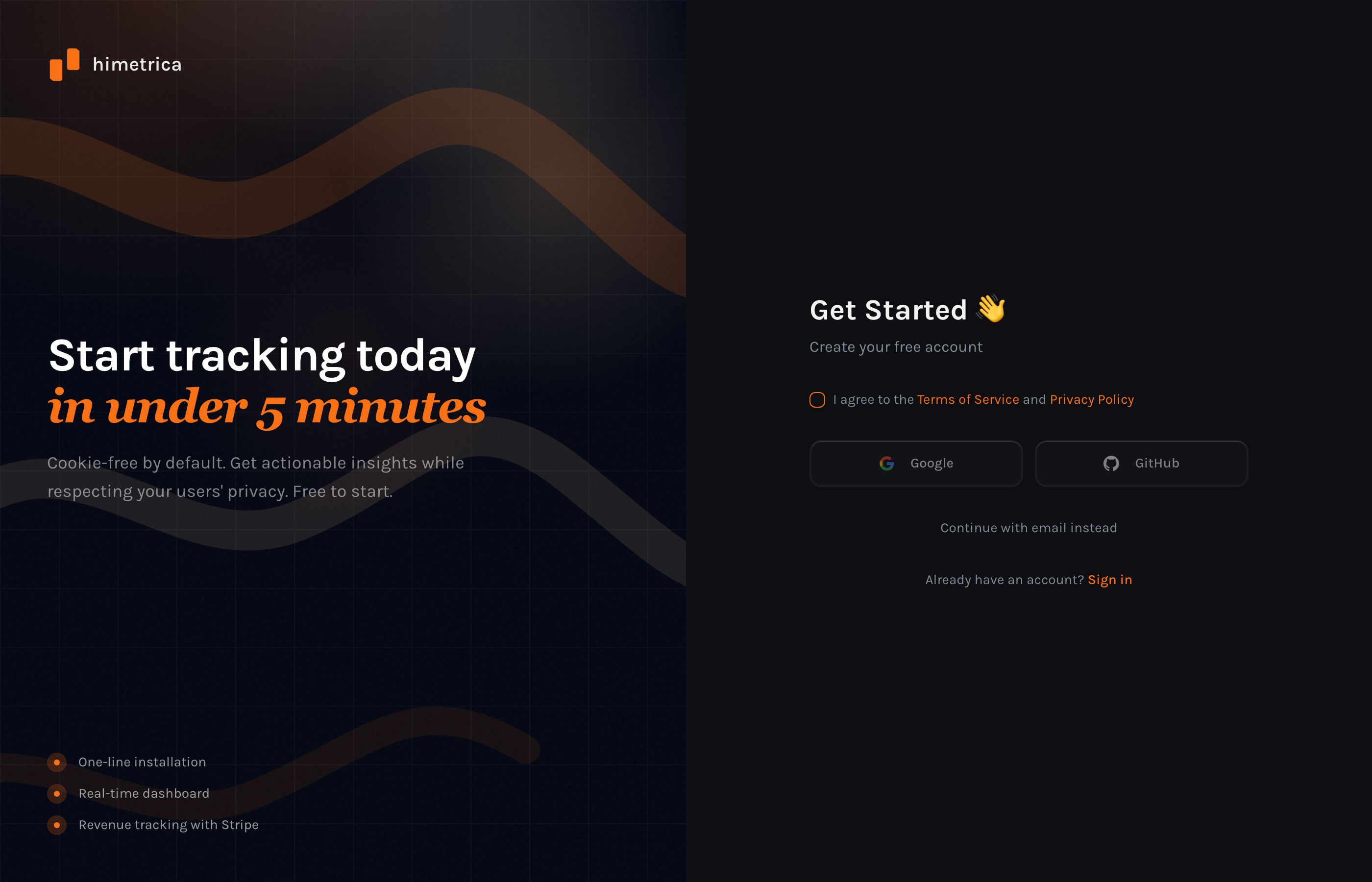
If you haven’t already, head to himetrica.com and click Get Started. You can sign up with Google, GitHub, or email — it takes about 30 seconds.
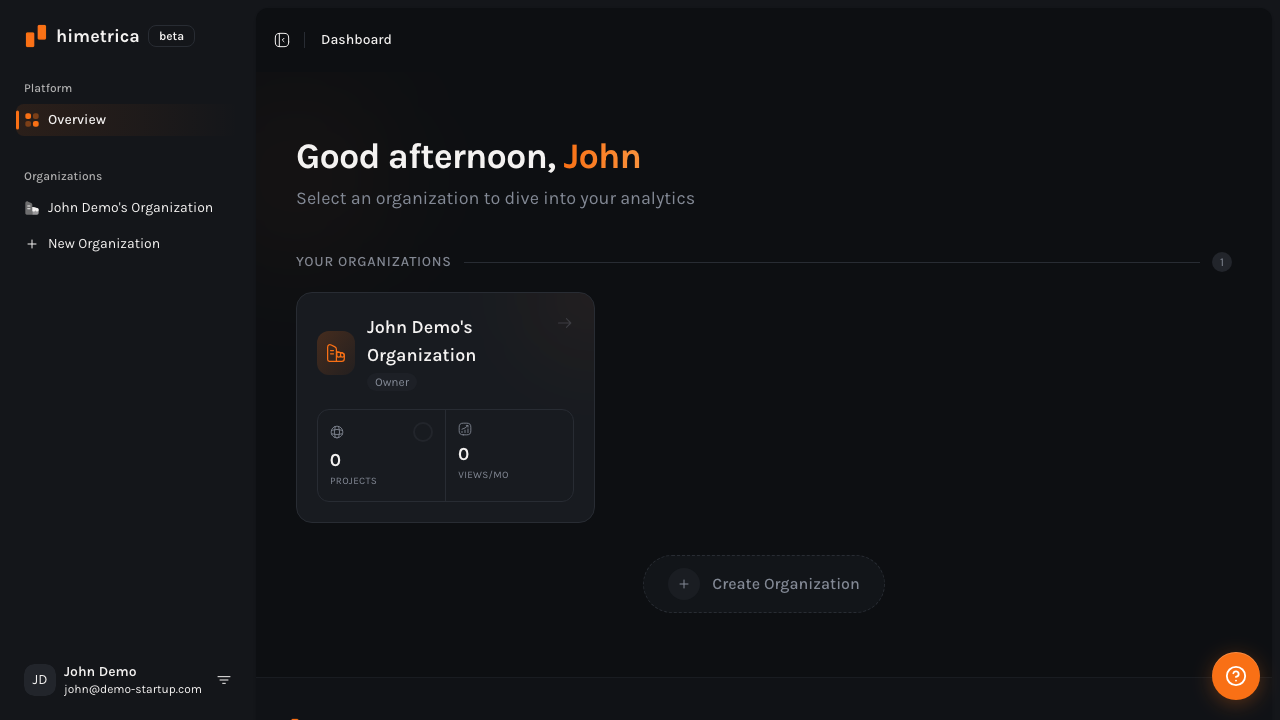
Once you’re in, you’ll land on your dashboard. Click on your organization, then create a new project for the website you want to track.
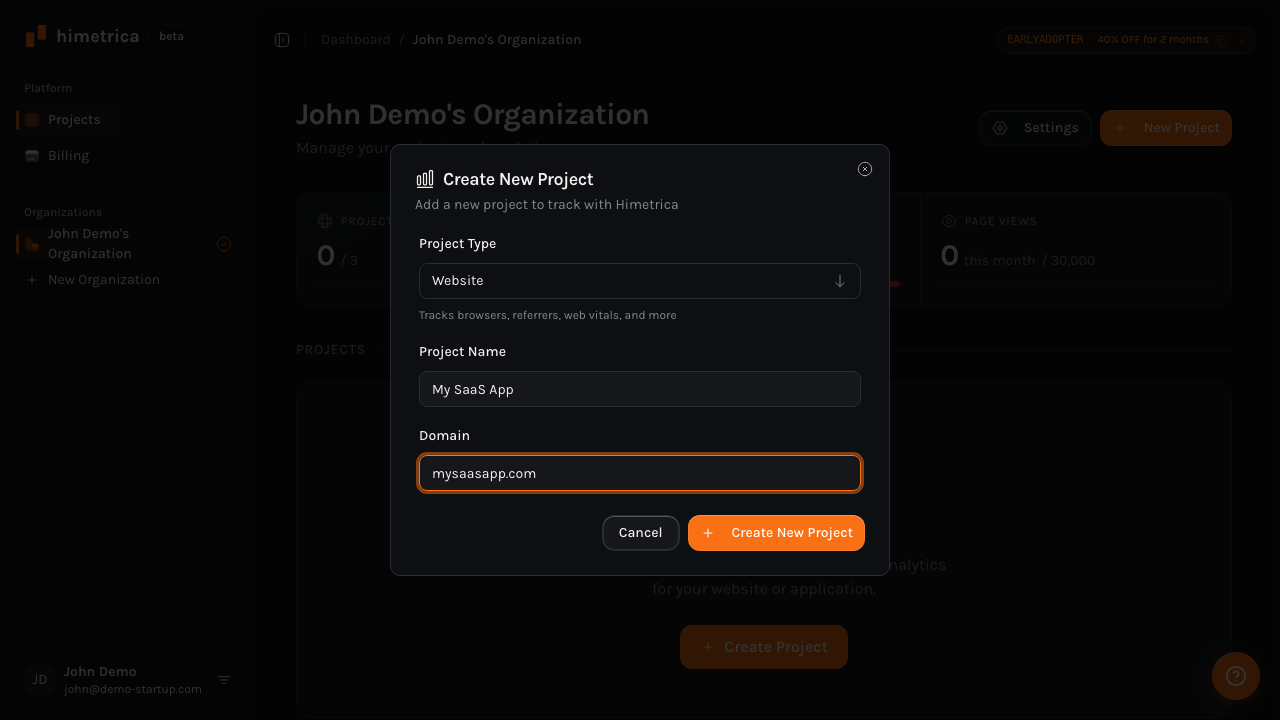
Give your project a name and domain — this is the site where you’ll be tracking visitors and revenue.
Step 1: Create a restricted API key in Stripe
Himetrica only needs read access to your customer and payment data. We use a restricted API key with the minimum permissions required — no write access, no sensitive operations.
Go to your Stripe Dashboard → API Keys and create a new restricted key. You need three permissions:
- Customers: Read
- Subscriptions: Read
- Charges and Refunds: Read
That’s it. Nothing else.
Shortcut: Use this direct link to create the key with the right permissions pre-filled. Just click “Create key” and copy the result.
Copy the key that starts with rk_live_ (or rk_test_ if you want to try it with test data first).
Step 2: Connect in Himetrica
In your Himetrica dashboard, go to Settings → Integrations. You’ll see Stripe listed alongside other payment providers like Abacate Pay, with a “Connect Stripe” button.
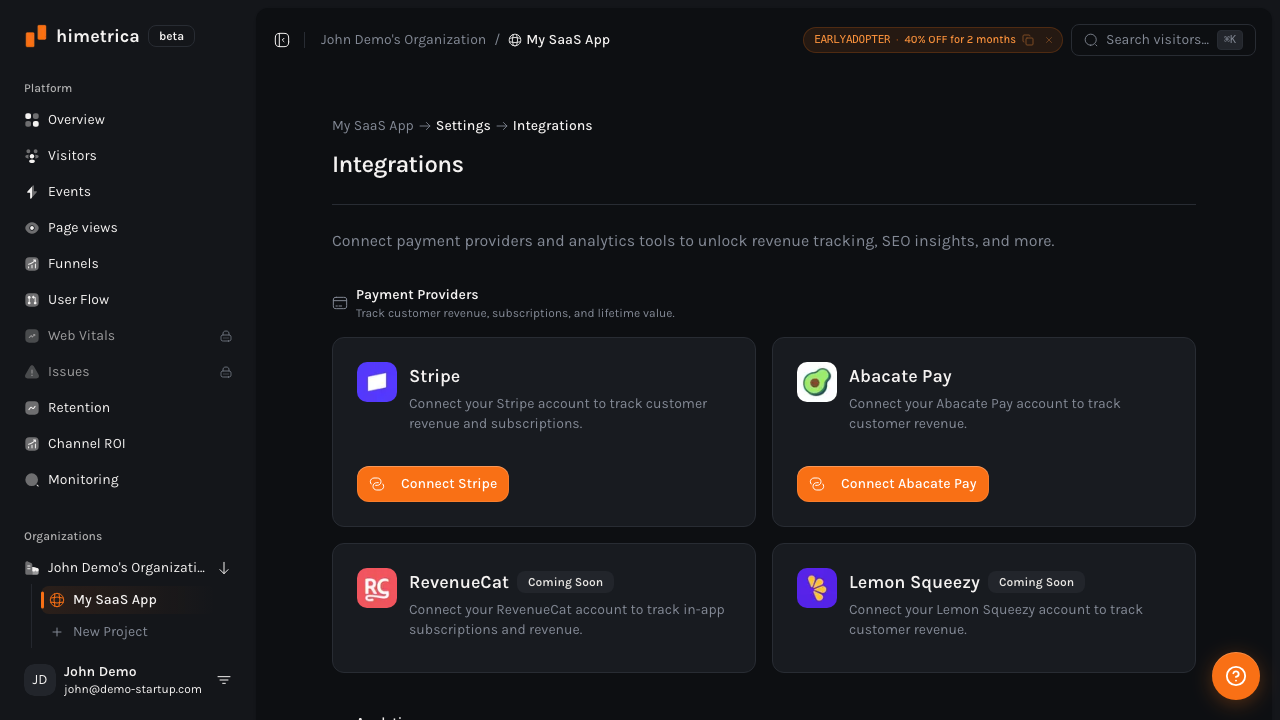
Click Connect Stripe. A dialog will appear showing the exact permissions your key needs. You can even click the link to create the restricted key with the right permissions pre-filled on Stripe.
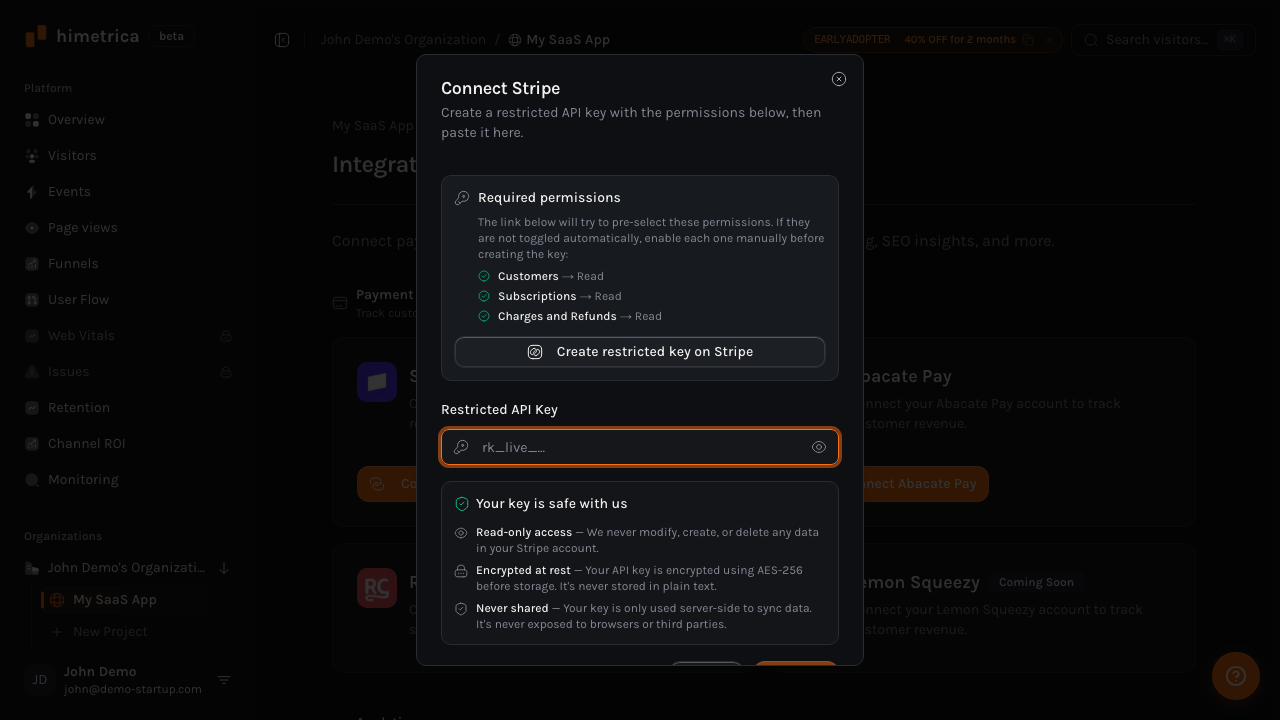
Paste your restricted API key in the field and hit Connect.
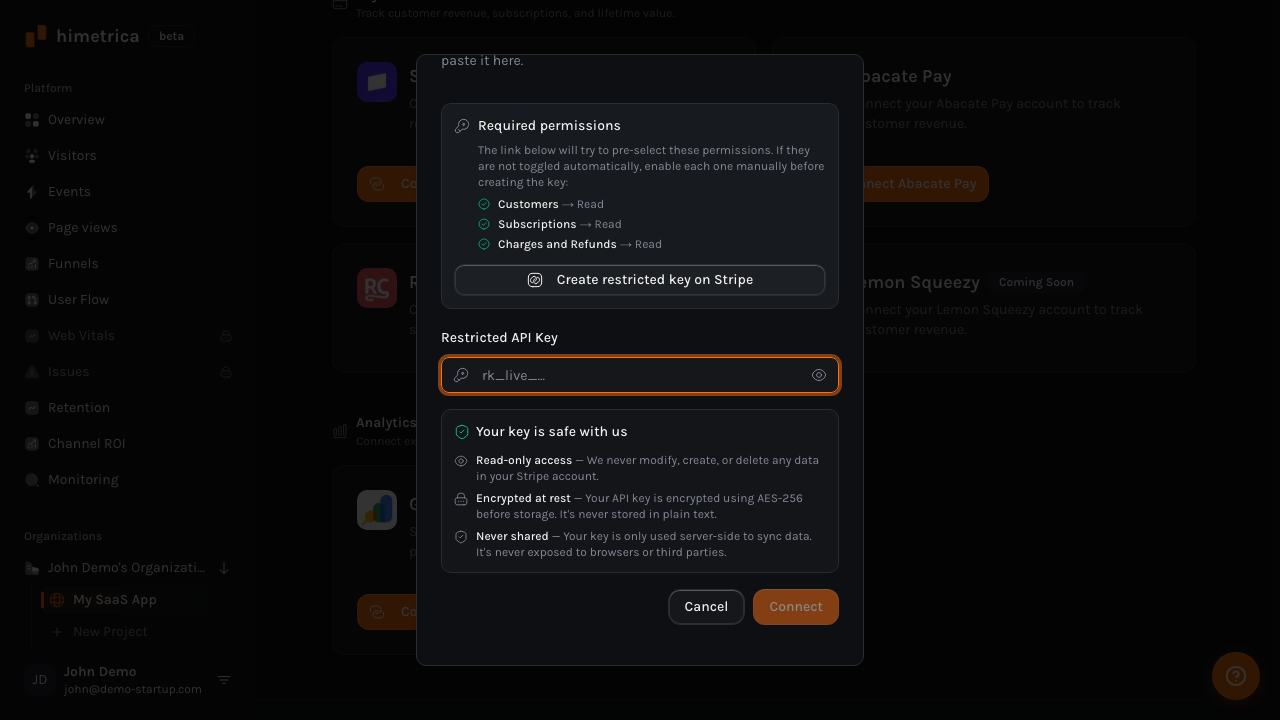
Himetrica validates the key immediately — if the permissions are wrong or the key is invalid, you’ll know right away. Your API key is encrypted before it’s stored. We never see or log the raw key.
Step 3: Wait for the initial sync
Once connected, Himetrica kicks off an automatic background sync. This pulls in your entire customer history:
- All customers with their email and name
- Active and past subscriptions with pricing, status, and billing intervals
- Up to 365 days of charge history with amounts, payment methods, and card brands
Depending on how many customers you have, this takes anywhere from a few seconds to a couple of minutes. You’ll see the status update from “Syncing” to “Active” when it’s done.
Step 4: Explore your revenue data
Once the sync is complete, your dashboard transforms. Here’s what you now have access to:
Revenue Overview — Your MRR, total revenue, active subscription count, and churn rate, all in one place. If you have customers in multiple currencies, Himetrica automatically converts everything to USD using live exchange rates.
Revenue Timeline — A daily breakdown of incoming revenue, so you can spot trends, dips, and spikes as they happen.
Top Customers — Your highest-paying customers ranked by lifetime revenue. Each one links to their full visitor profile, so you can see their entire journey from first page view to latest payment.
Subscription Breakdown — Revenue grouped by product and plan. See which tiers drive the most MRR and how many subscribers each plan has.
Payment Methods — A breakdown of how your customers pay: card brands, payment types, and revenue per method.
Visitor Revenue Attribution — This is the one that changes everything. When a Stripe customer’s email matches a visitor in Himetrica, their entire browsing history connects to their payment history. You can see exactly which pages a paying customer visited before they signed up, which campaign brought them in, and how their engagement patterns differ from visitors who never converted.
What happens after the first sync
Himetrica doesn’t just sync once and forget. You can trigger a manual sync anytime from the integrations page to pull in the latest data. Each sync grabs new customers, updated subscriptions, and recent charges.
After every sync, Himetrica takes a revenue snapshot — a point-in-time capture of your key metrics:
- Monthly Recurring Revenue (MRR)
- Active subscriptions
- Churn rate (cancellations in the last 30 days)
- Trial conversion rate
- New customer count
These snapshots build up over time, giving you a historical view of how your revenue metrics evolve week over week, month over month.
AI-powered revenue insights
If you’re on a plan that includes AI insights, Himetrica runs your revenue data through an analysis that surfaces patterns you might miss:
- Growth trends: Is your MRR accelerating or decelerating?
- Churn signals: Which customer segments have the highest cancellation rates?
- Conversion patterns: What do your best customers have in common?
- Revenue predictions: Where is your MRR heading based on current trends?
These insights update with every sync, so you always have a fresh read on the health of your business.
Beyond Stripe: other integrations
Stripe is the most common payment provider we see, but it’s not the only one. Himetrica also supports:
Shopify
For e-commerce businesses, the Shopify integration pulls in orders, customers, and line items. You get the same revenue attribution — connecting store purchases to website visitor behavior. Shopify uses OAuth, so the setup is even simpler: just authorize and you’re connected.
AbacatePay
If you’re operating in Brazil, AbacatePay is a popular choice for Pix-based recurring payments. Himetrica syncs subscription data and billing records, with automatic BRL to USD conversion. The setup is the same as Stripe: paste your API key and go.
RevenueCat
For mobile apps and subscription businesses that use RevenueCat to manage in-app purchases across iOS and Android — this integration is coming soon. It’ll bring the same visibility: subscriber data, revenue metrics, and churn analysis, all connected to your web analytics.
Paddle and Lemon Squeezy
Support for Paddle and Lemon Squeezy is on our roadmap. If you’re using either of these and want to be notified when they’re available, drop us a line.
The bigger picture
Revenue tracking isn’t just about having another dashboard to look at. It’s about closing the loop between what you spend to acquire visitors and what those visitors actually pay you.
Without that connection, you’re optimizing in the dark. You might be doubling down on a marketing channel that brings lots of traffic but zero revenue. You might be ignoring a small but highly profitable segment of visitors because they don’t show up in your pageview counts.
When revenue lives alongside your analytics, you stop guessing and start seeing. Which landing pages convert to paid customers. Which traffic sources have the best LTV. Which visitor behaviors predict a future subscription.
That’s the kind of data that changes decisions. And it starts with a two-minute integration.
Himetrica Team
Published on February 26, 2026